Preferences
Settings
Where Calmly Script's settings are, and what each section of them holds.
On this page
Opening Settings
- , or Ctrl+,⌘,. On a Mac, Settings is in the Calmly Script menu, with the same shortcut.
- The gear button at the top right of the title bar.
Settings take effect as you change them: there is nothing to confirm. Close, the cross or EscEsc put the dialog away. On the left is the list of sections; ↑↑ and ↓↓ move through it.
Settings belong to the app, not to a screenplay: they are the same for every screenplay you open, and they are kept for the next time you start the app.
The sections
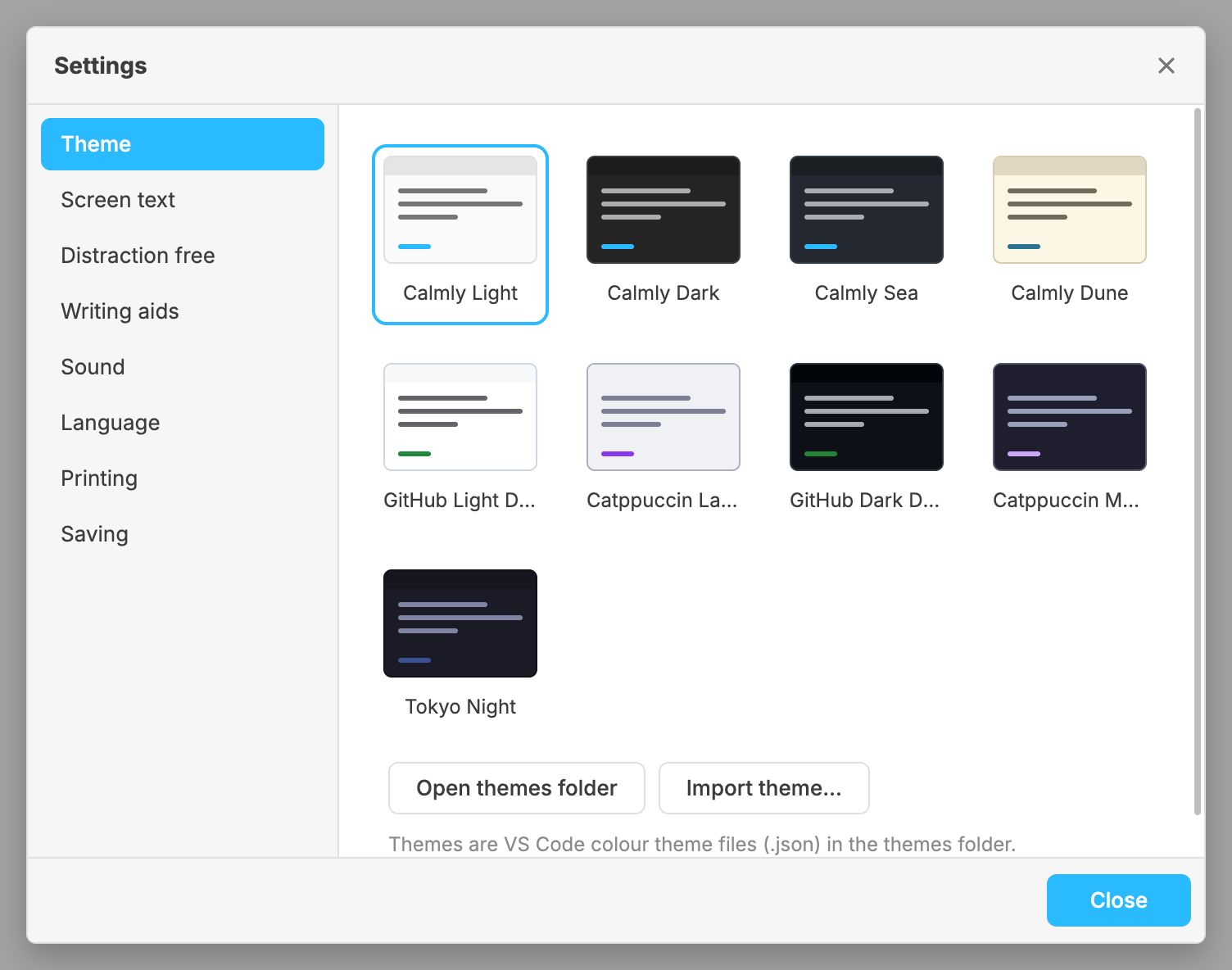
Theme: the colours of the app. See Themes.
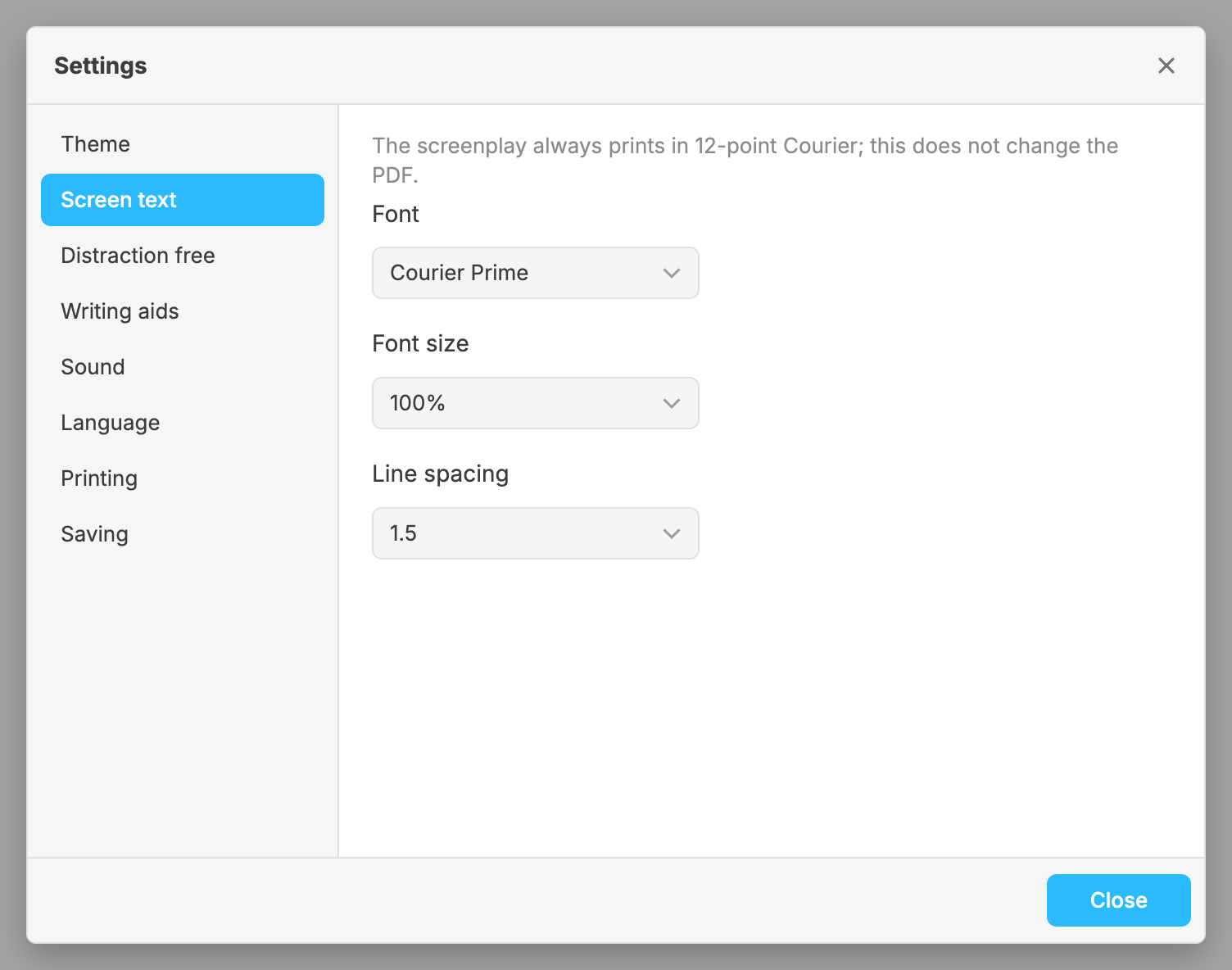
Screen text: the font, the font size and the line spacing of the text you write in. They change the screen only: the printed screenplay is always 12-point Courier. See Writing aids, text and sound.
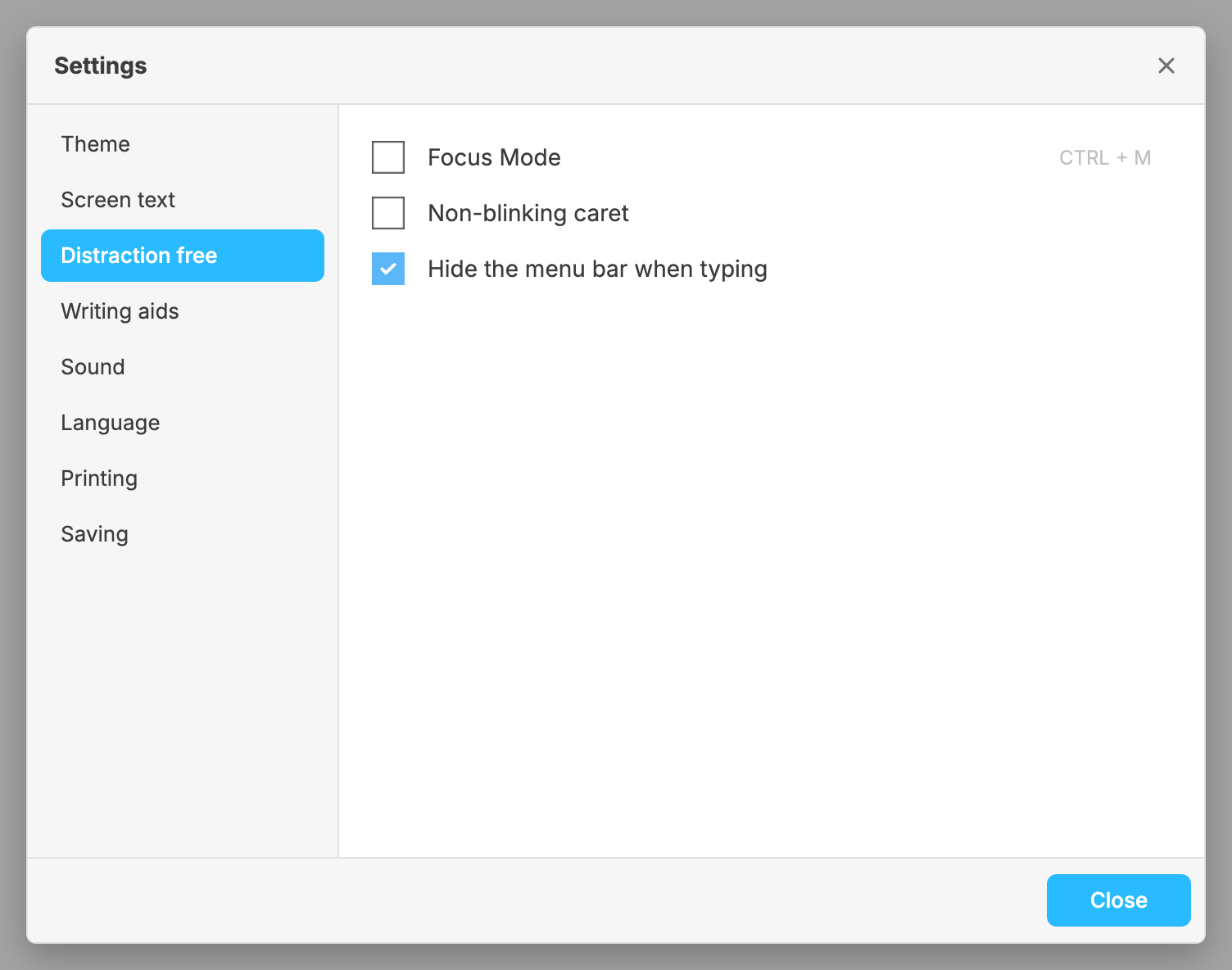
Distraction free: Focus Mode, which dims everything but the line you are writing; a caret that does not blink; and whether the menu bar hides while you type. On an Android phone or tablet, also whether to hide the system status bar. See Full screen, type size and focus.
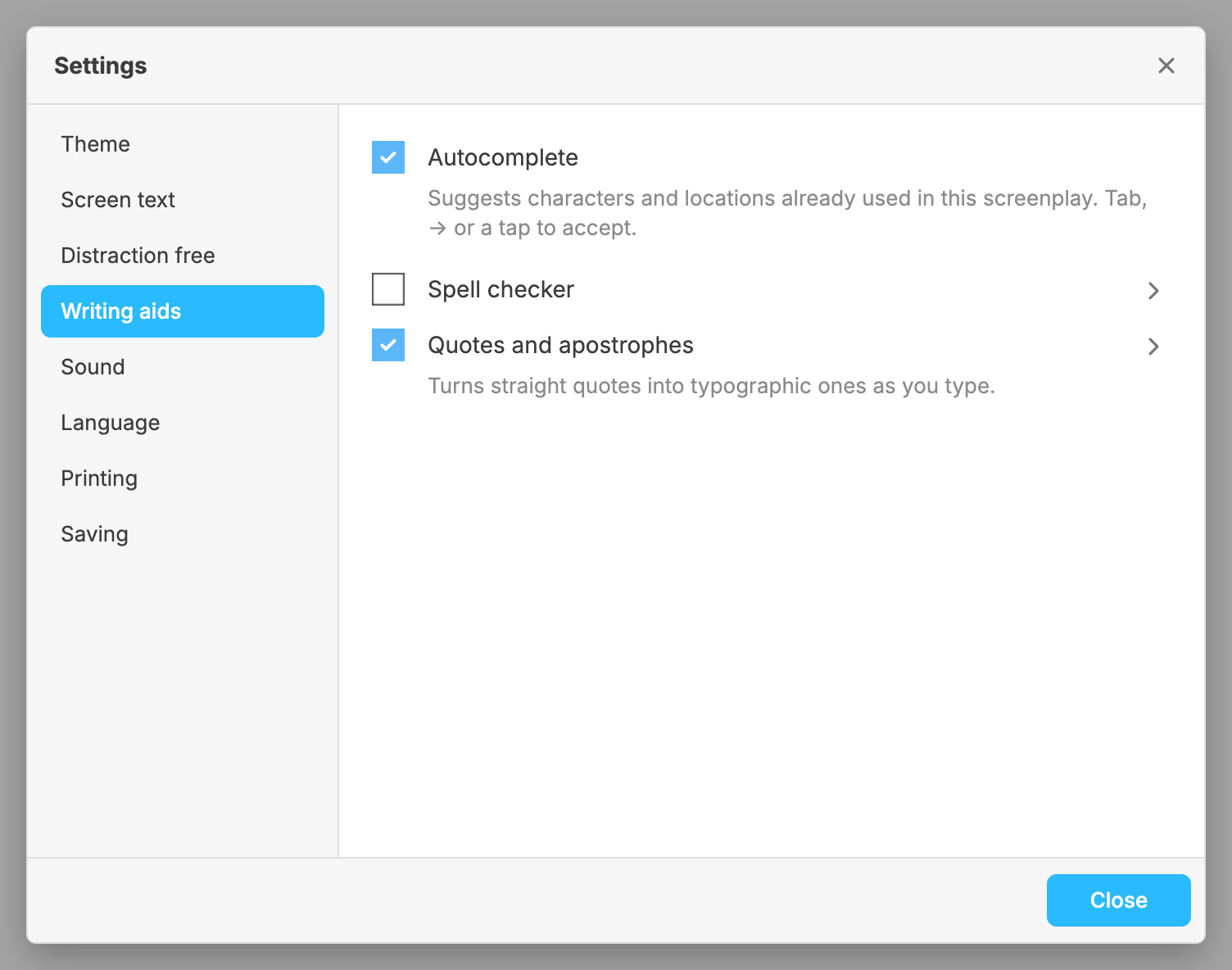
Writing aids: autocomplete, the spell checker, and typographic quotes and apostrophes. Sound: a typing sound and its volume. Language: the language of the app. See Writing aids, text and sound.
Printing: the paper size, whether scene headings print in bold, whether
the scenes are numbered, and the language of (MORE) and (CONT'D). See
Paper size.
Saving: the default folder for new screenplays, and whether screenplays save automatically. See Saving. opens Settings straight on this section.