
Preferences
Themes
The colour themes that come with Calmly Script, and how to add a VS Code colour theme of your own.
On this page
A theme is the colours of the app: the page, the text, the menus, the caret, and the colours that mark a scene heading or a note. Themes change the screen only. The printed screenplay, the PDF and the Word export are always black on white.
Choosing a theme
Settings › Theme shows every theme as a small picture of the page. Click one and the app takes its colours at once.
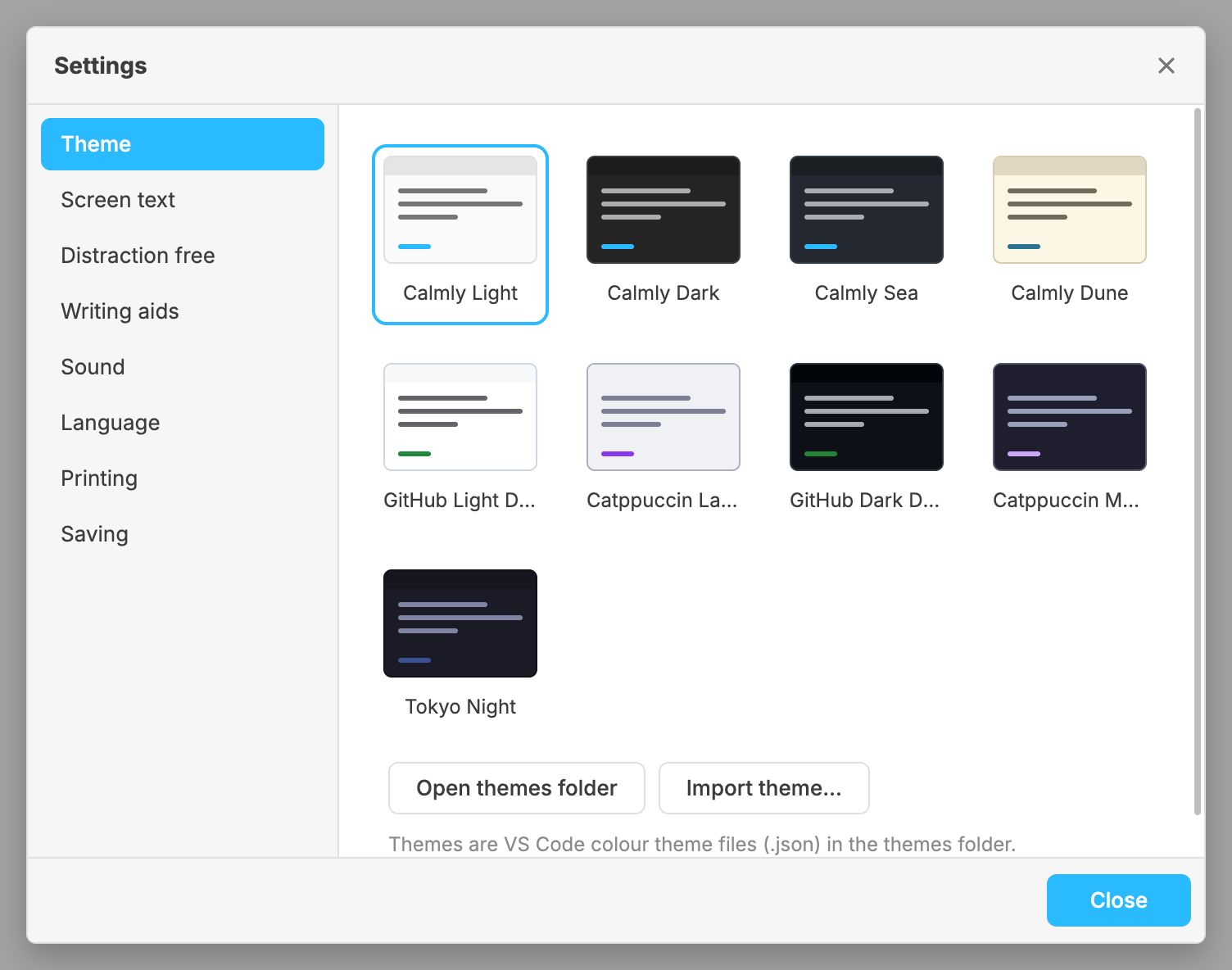
Nine themes come with the app:
- Four of Calmly Script’s own: Calmly Light (the one you start with), Calmly Dark, Calmly Sea and Calmly Dune.
- Five well-known themes from Visual Studio Code: GitHub Light Default, Catppuccin Latte, GitHub Dark Default, Catppuccin Mocha and Tokyo Night.
How a screenplay is coloured
Most of a screenplay is never coloured: action, dialogue, character names and transitions are in the theme’s text colour, because their position on the page already says what they are. What is coloured is what you read differently:
- Scene headings, in the theme’s accent colour.
- Notes (
[[ ]]), in amber. A note that starts with a tag, such as[[Todo: …]], takes a colour of its own, the same every time for the same tag. A tag that names a colour, such as[[Red: …]], takes that colour. - What you are meant to skip is faded towards the page: the Fountain characters that mark the syntax, sections and synopses, and boneyard text.
Every theme gets these colours, including themes that were never made for Calmly Script: they are worked out from the theme’s own colours, strong enough to read.
Adding a theme
A theme is a Visual Studio Code colour theme file, a .json, in the
app’s themes folder. Any colour theme from the Visual Studio Code Marketplace
works as it is, without editing.
- Import theme… chooses a
.jsonfile, checks that it is a colour theme, copies it into the themes folder and switches to it. It never overwrites a theme that is already there. A file that is not a colour theme is refused with That file is not a usable colour theme. - Open themes folder (Windows, macOS and Linux) opens the folder in your
file manager. Put a
.jsonfile there, and it is in the list the next time you open Settings.
From a theme file Calmly Script reads the theme’s name, whether it is light
or dark, and its interface colours (colors). The colours for code
(tokenColors) are not used. A theme that sets only a few colours still works:
the rest are worked out from the ones it has. The caret takes the theme’s
cursor colour (editorCursor.foreground).
Theme files may contain comments and trailing commas, as Visual Studio Code allows. A file in the folder that cannot be read is skipped; the other themes are listed as usual.
Changing a theme that came with the app
The nine themes are also in the themes folder, as .json files. Edit one and
the app uses your version. Delete one and the original is written back the
next time you start the app. A theme you have not edited is brought up to date
when a new version of the app changes its colours; one you have edited is left
alone.