Preferences
Writing aids, text and sound
Autocomplete, the spell checker, typographic quotes, the font and size you write in, typing sounds and the app's language.
On this page
These are the settings for how the app behaves while you type and what the text looks like on screen. Open them with .
Writing aids
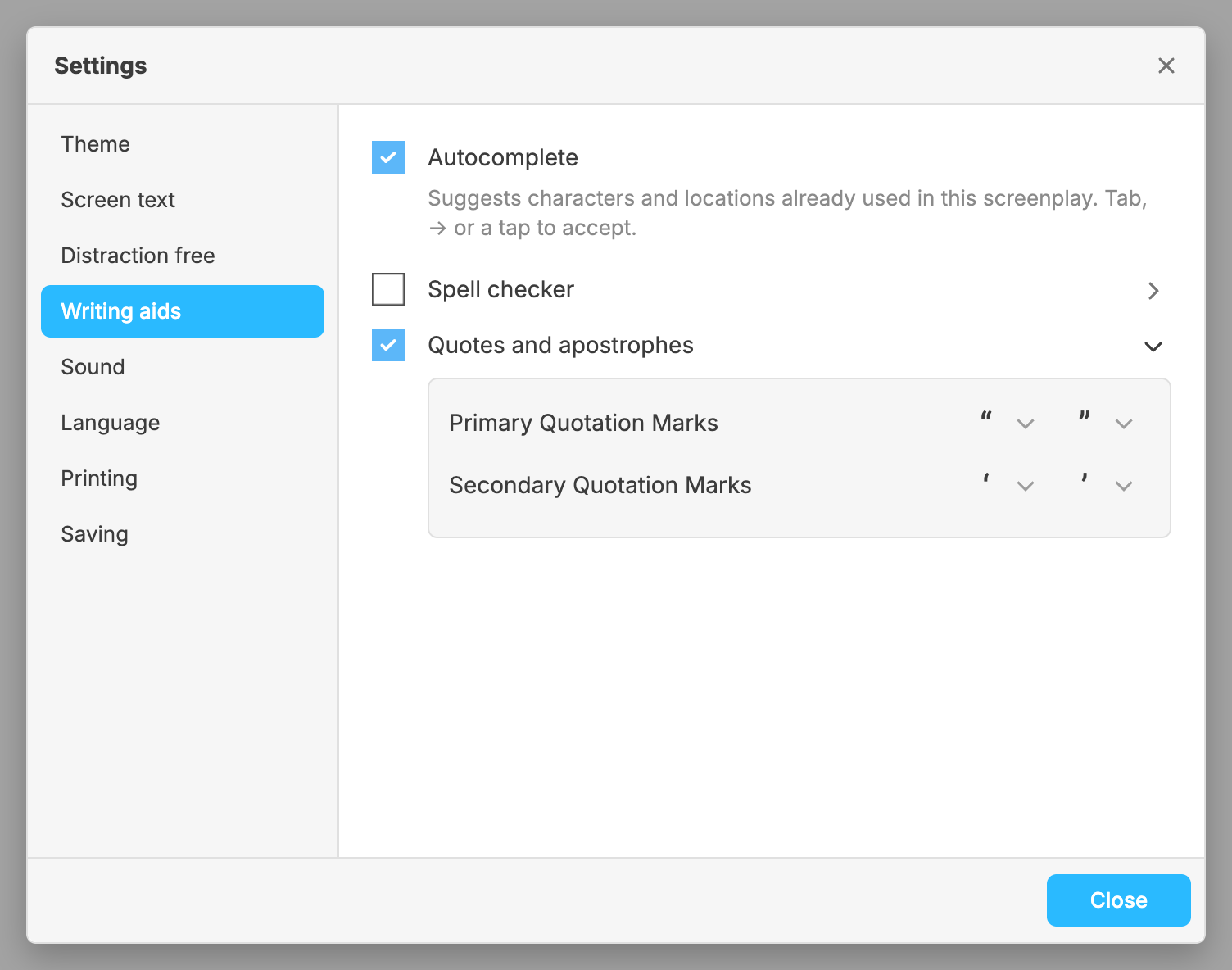
Autocomplete, on when you start. As you type a character’s name or a place, the rest of a name this screenplay has already used appears after the caret in grey. TabTab or →→ accepts it, and so does a tap on a touch screen; typing on ignores it. It only ever suggests what you have written before in this screenplay. Turn it off and nothing appears beside the caret. See Autocomplete.
Spell checker, off when you start. On Windows and Linux, the arrow at the end of the row unfolds the list of languages it checks. On Android and ChromeOS, spell checking is done by the device’s own system: it may not appear on some devices or Android versions, and the app cannot turn it on there.
Quotes and apostrophes, on when you start. Straight quotes typed on the
keyboard become typographic ones as you type: " becomes “ or ”, and '
becomes ‘ or ’. The arrow at the end of the row unfolds the four marks used,
for the primary and the secondary quotation, and you can choose each one.
Until you do, they follow the language your system is set to: German, for
example, uses „ and “.
Screen text
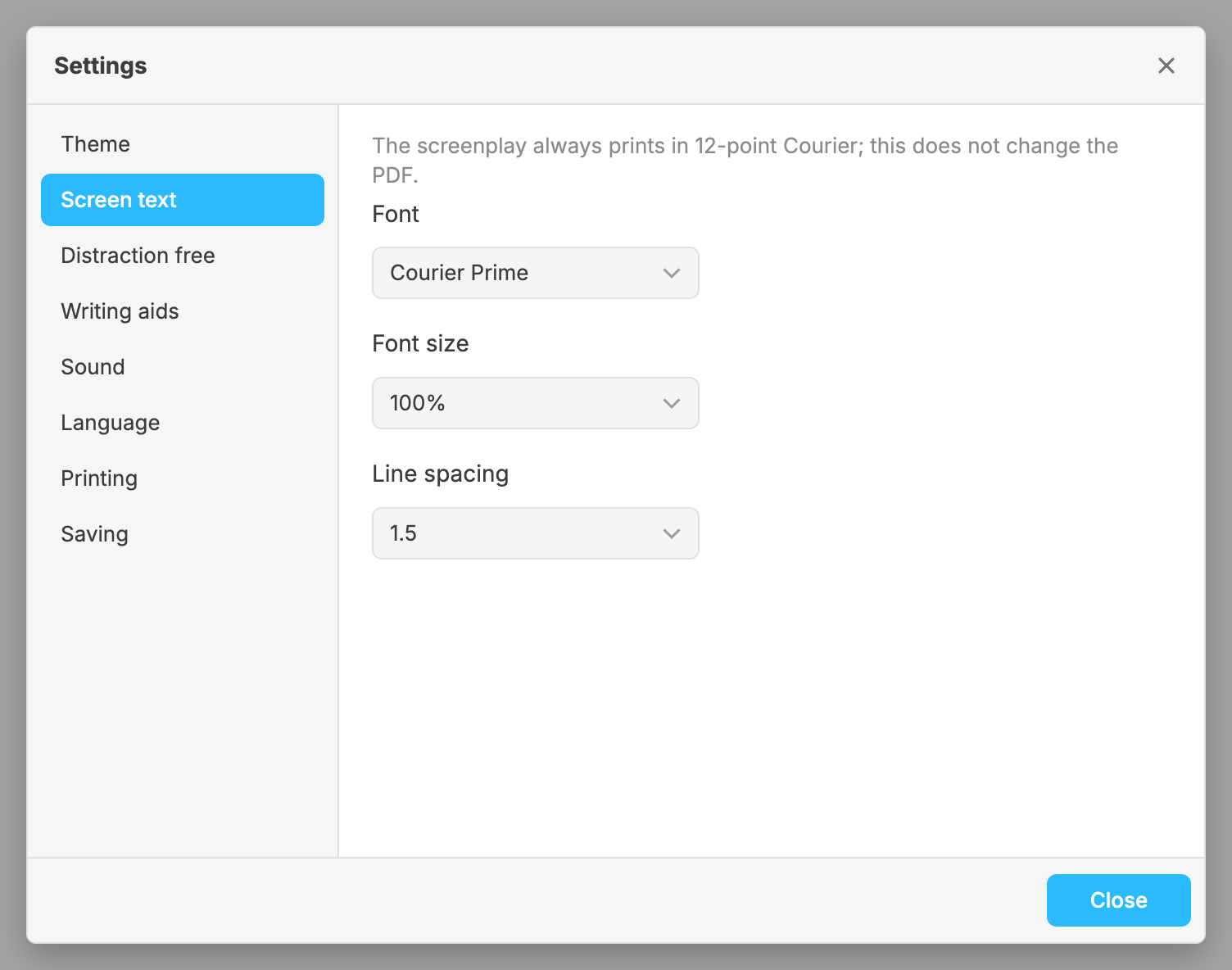
These change the text you write in, and nothing that prints: the PDF, the Word export, printing and the Preview are always 12-point Courier Prime, whatever you choose here.
- Font: Courier Prime, which you start with and which the script prints in; Courier Prime Sans, the same letters without the serifs, made for reading on a screen; or Roboto Mono. On Windows, macOS and Linux the list also has the fonts installed on your computer.
- Font size: from 50% to 400%. and step through the same list (see Full screen, type size and focus).
- Line spacing: 1, 1.25, 1.5 (which you start with) or 2. At 1 the lines are as close as on the printed page. The space between elements follows it.
Sound
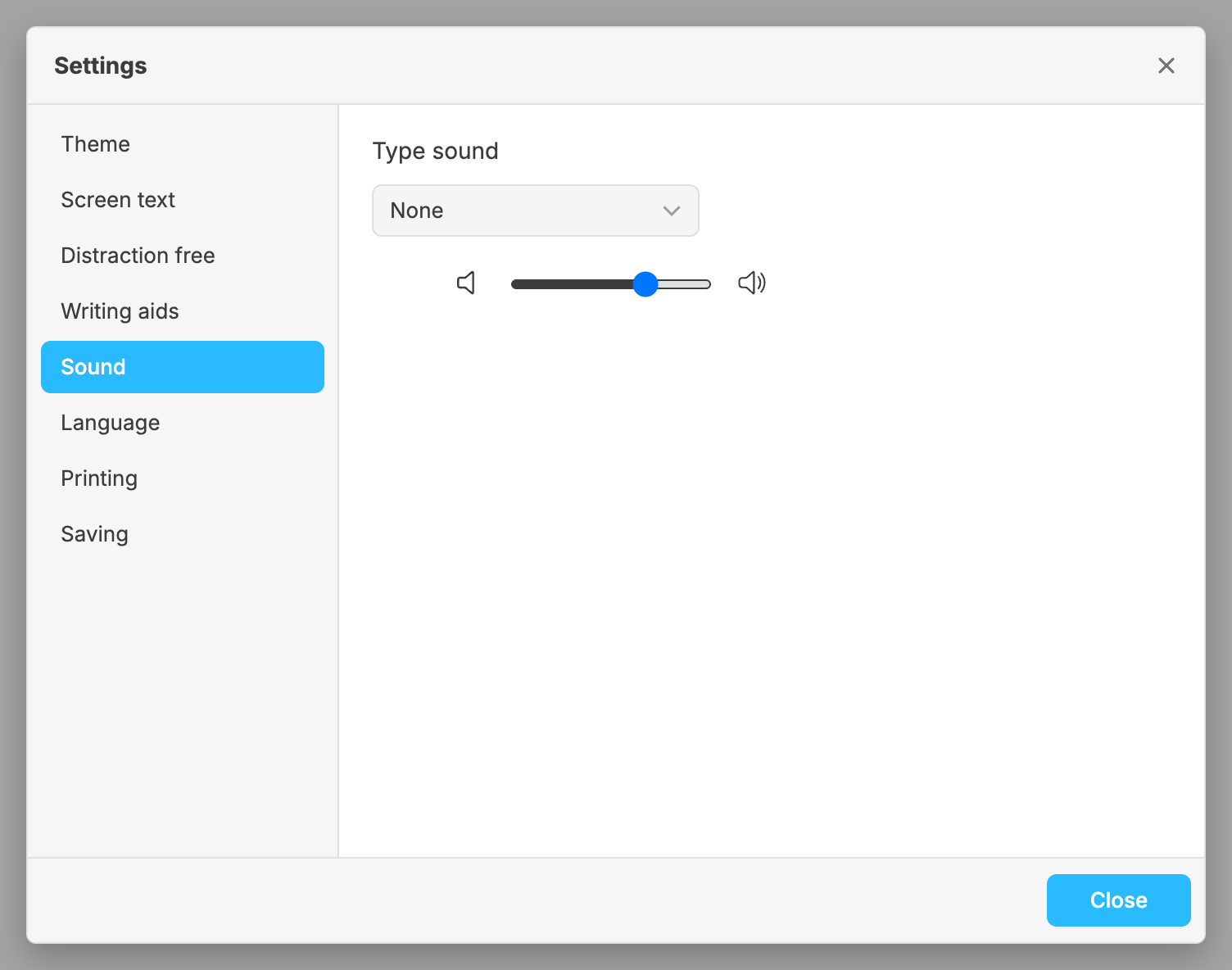
Type sound plays a sound as you type: Typewriter, Keyboard or Taps, or None, which you start with. Choosing one plays a sample of it. The slider under it sets the volume, and plays the sample again when you let go.
Language
Language is the language of the app’s menus, dialogs and messages: English, Spanish, German, French, Italian or Brazilian Portuguese. The app needs to restart to change it, and asks whether to restart now or later. Restarting closes every window without asking, and brings each one back as it was, with changes that were not saved still marked as such.
The words a split speech prints with, (MORE) and (CONT’D), follow the screenplay’s own language, not the app’s (see Other languages).